
1. Overview
This document provides an overview of utilizing the PowerApps Component Framework (PCF) to develop custom controls for Dynamics 365 CRM.
PCF empowers developers to create advanced user interface customizations, integrate seamlessly with external services, and enhance user interactions beyond the capabilities of standard Power Apps controls.
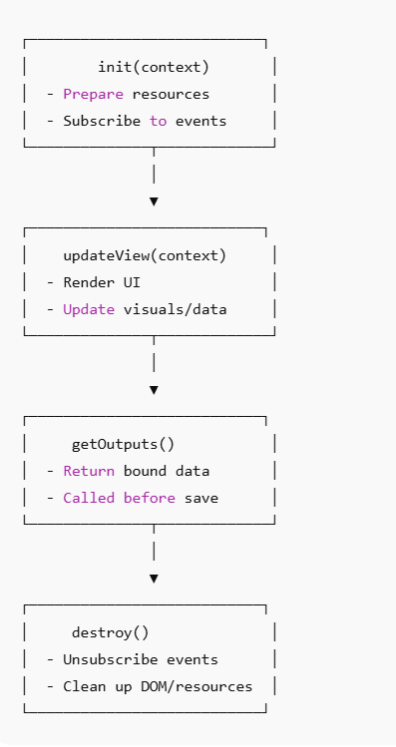
Additionally, the document outlines the PCF control lifecycle, detailing key methods such as init(), updateView(), getOutputs(), and destroy(). These methods are essential for managing control initialization, data updates, value handling, and cleanup within the form environment.
2. What is PCF?
The PowerApps Component Framework (PCF) is a development framework designed to enable the creation of custom controls for use within Dynamics 365 CRM forms and model-driven apps. These custom controls can replace or enhance standard Power Apps controls, offering significantly greater flexibility in how data is presented and interacted with by end users.
3. Why PCF Matters?
By leveraging PCF, developers can build tailored, reusable components that align closely with business needs and user expectations. It empowers teams to go beyond limitations, delivering solutions that are not only functional but also intuitive, scalable, and visually compelling.
Consider using PCF in the following scenarios:
- Custom UI Requirements
You need to implement user interface behavior or design that cannot be achieved with out-of-the-box controls such as interactive visualizations, custom input mechanisms, or dynamic layouts. - Enhanced Data Presentation
Your solution requires advanced data visualization or manipulation, such as rendering charts, sliders, maps, or other dynamic components that improve usability and engagement. - External Integrations
You need to connect with third-party libraries, services, or APIs to extend functionality—whether for data retrieval, processing, or visualization. - Consistent User Experience Across Apps
You want to ensure a uniform look and feel across multiple forms or model-driven apps, especially in enterprise environments where consistency is key. - Performance and Responsiveness
Your application must handle large datasets or complex interactions efficiently, with optimized rendering and minimal latency.
4. How Does PCF Work?
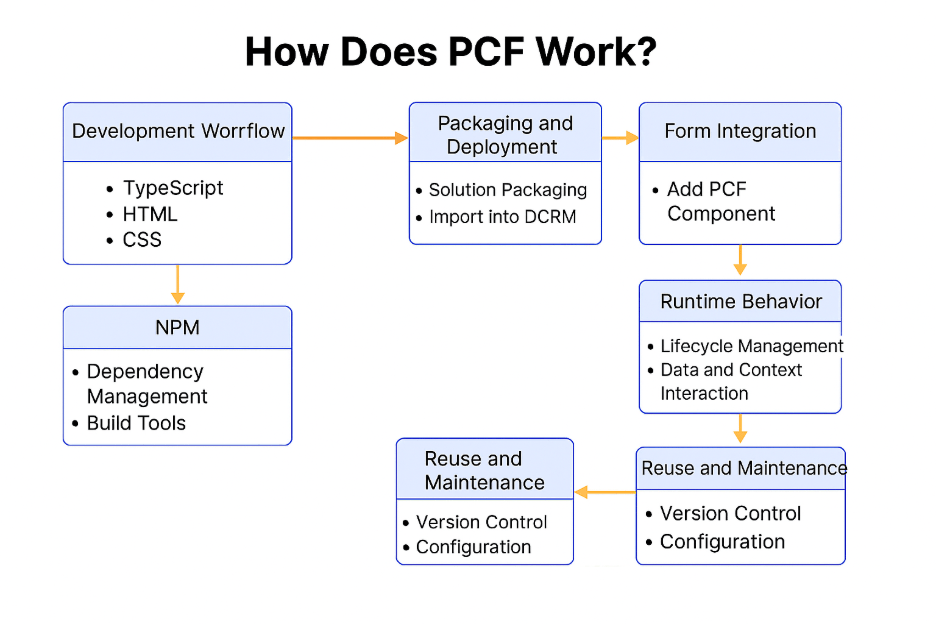
PCF components are built using modern web technologies such as TypeScript, HTML, and CSS, and are packaged into solutions that can be imported into a DCRM environment. Once deployed, these components can be added to forms just like native controls.
Developer Environment
- PCF CLI: Used to scaffold and manage PCF projects.
- NPM (Node Package Manager): Manages dependencies, build tools, and third-party libraries.
- TypeScript / HTML / CSS: Core technologies used to build the component.
Component Development
- Developers write logic, UI, and data binding code.
- External libraries (e.g., Chart.js, Axios) can be integrated via NPM.
Packaging Deployment
- The component is bundled into a solution file.
- Imported into the Dynamics 365 CRM environment.
Form Integration
- PCF components are added to forms via the form designer.
- Configurable properties and data bindings are set.
Runtime Execution
- Lifecycle methods (init, updateView, getOutputs, destroy) manage control behavior.
- Direct access to form data and context.
- Enhanced interactivity and performance.
Reusability
- Once a PCF component is developed and packaged, it can be reused across multiple forms, entities, and even different model-driven apps.
- This promotes consistency in user experience, reduces development effort, and ensures standardized behavior across the organization.
Version Control
- PCF components are managed as part of a solution, which supports versioning.
- Developers can update components, fix bugs, or enhance features, and deploy newer versions without disrupting existing functionality.
- This makes it easier to maintain and evolve components over time.
In essence, PCF provides the structure and tools to deliver a more advanced and seamless user experience within the Dynamics 365 ecosystem.
5. LIFECYCLE
After creating a PCF control and placing it on a Dynamics 365 CRM form, the control goes through four key lifecycle methods. These methods are automatically invoked by the Power Apps runtime and are responsible for managing the behavior and rendering of the custom component throughout its lifecycle on the form.
- To understand about lifecycle methods of PCF.
- We have Build Dynamic Text Input Control in PCF and attached to the DCRM Form.
- See Each method serves a specific purpose and interacts with the component at different stages.
Here is the Framework Runtime Lifecycle Flow Diagram
Here is the Lifecycle Runtime Behavior Process flow.
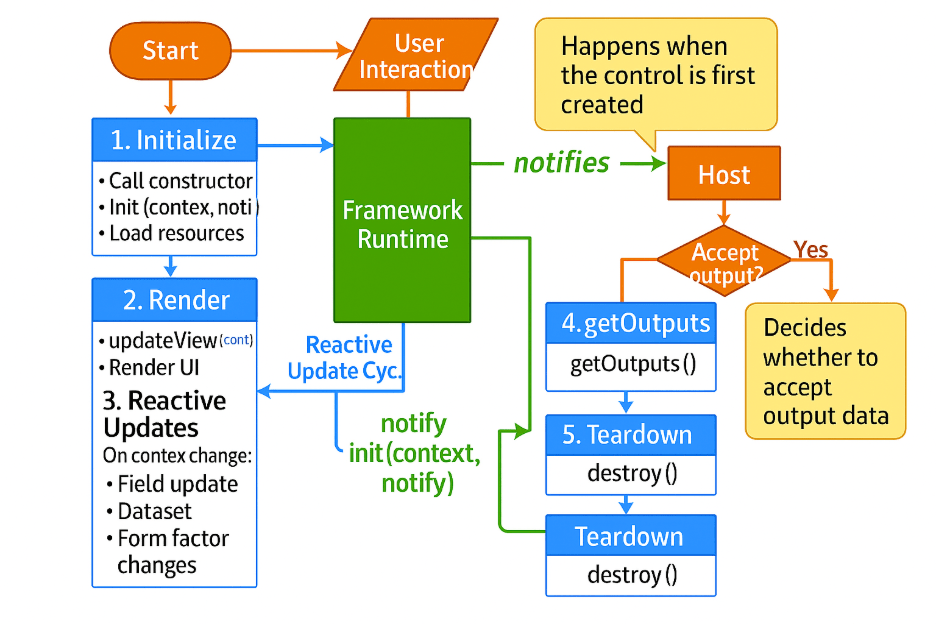
Start
- This is the beginning of the control’s journey.
- Triggered when the control is added to a form or page.
User Interaction
- Represents actions taken by the user (e.g., clicking, typing).
- These interactions can trigger updates in the control.
Framework Runtime
- Framework Runtime is the execution environment that manages the lifecycle of a custom control in PowerApps.
- Think of this as the engine that powers the control.
- It notifies the host when something changes (like data).
Initialize
- Happens when the control is first created.
- Constructor: Sets up internal variables
- init(context, notifyOutputChanged, state, container):
- context: Info about the environment (data, theme, size).
- notifyOutputChanged: A method to tell the framework that output has changed.
- state: Stores data across sessions.
- container: The HTML element where the control lives.
- Loads external resources (like CSS or JS files).
Render
- The first visual update.
- Uses updateView(context) to draw the UI.
- Called again whenever something changes (like data or screen size).
Reactive Update Cycle
- Happens when:
- A field value changes.
- A dataset is refreshed.
- The form factor (like screen size) changes.
- updateView(context) is called again to re-render the control.
notify
In the context of the Framework Runtime for PCF (PowerApps Component Framework), notify is a callback function provided by the host (Power Apps) to the control during initialization. Here’s what it does:
- notify is used by the control to inform the host that something has changed inside the control that might require the host to take action.
- This could be a change in the control’s value, state, or visual representation.
getOutputs()
- Called when the framework needs the control’s data.
- Returns only the values defined in the control’s manifest.
Host Decision
- The host (Power Apps) decides whether to accept the output.
- If accepted, it continues.
- If not, it may trigger a teardown.
Teardown
- Happens when the control is removed or the user navigates away.
- destroy() is called to clean up:
- Remove event listeners.
- Free up memory.
- Note : This dual teardown representation helps illustrate that destroy() might be called:
- at the end of the entire lifecycle, or
- after a reactive update, if the control is no longer needed
6.PowerApps component framework lifecycle of component
init()
The init() method is the first method called in the PowerApps Component Framework (PCF) lifecycle. It runs when your custom PCF component is initialized on a Dynamics 365 or Power Apps form.
What does init() do?
It is responsible for setting up the component’s structure and behavior before it appears on the form.
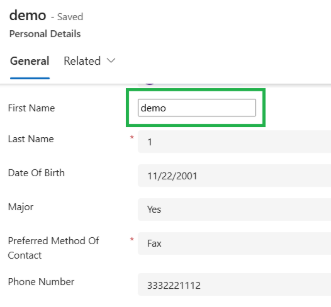
- It creates and sets up the DOM elements (HTML elements like div, input, etc.) that make up your custom control.
- It attaches those elements to the form so that they become part of the page.
- It allows you to add event listeners (like click, change, etc.) to handle user interactions.
- You can also load external libraries or perform initial configuration here.
When is init() Called?
init() is called after the CRM form begins rendering but before your PCF component is fully visible or interactive.
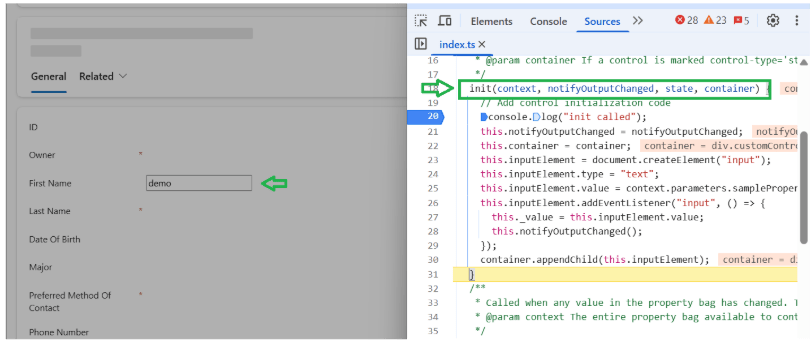
updateView()
The updateView() method is the second method called in the PowerApps Component Framework (PCF) lifecycle.
It runs after init(), and it is called every time the data, field value, or context changes on the form.
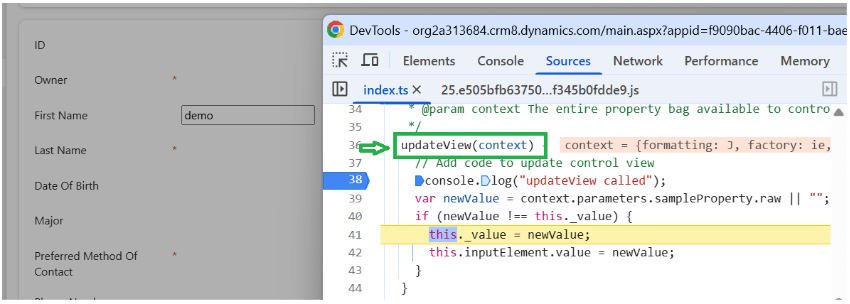
By default updateView() called automatically after the init() method because before loading the Control on the form
First DCRM loads the metadata and data related to the fields so updateview will set those initial values in the control
What Does updateView() Do?
It is responsible for updating the component’s display with the latest data or changes from the form.
Here’s what happens inside updateView():
- It receives the current context (data, field value, formatting, etc.).
- It updates the UI elements (like text, charts, or colors) to reflect the latest values.
- It may re-render parts of the control to match form changes.
- You can read field values and use them to change how your control looks or behaves.
- The form field value changes.
- The context (e.g., form mode or attributes) changes.
- Other controls on the form affect this one (through business rules or formulas).
notify()
In the context of the Framework Runtime for PCF (PowerApps Component Framework), notify is a callback function provided by the host (Power Apps) to the control during initialization. Here’s what it does:
- notify is used by the control to inform the host that something has changed inside the control that might require the host to take action.
- This could be a change in the control’s value, state, or visual representation.
When is notify() Called?
- When a user interacts with the control.
- When internal state changes.
- Host receives the notification.
- Host calls
getOutputs() - Host updates app state or data model
getOutputs()
The getOutputs() method is the third method in the PCF lifecycle.
It returns the current value(s) from your component to Power Apps.
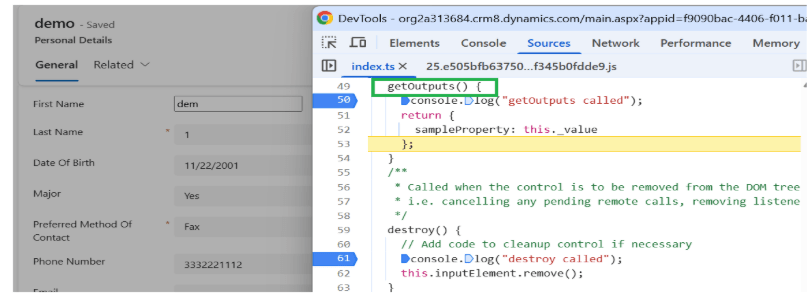
So when user changes the value in the textbox getoutput() is called after that updateview() method will be called to update the UI with latest value.
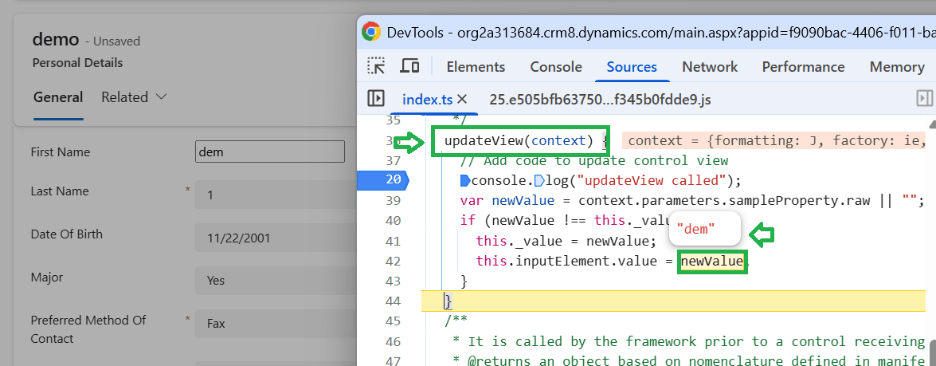
What Does getOutputs() Do?
It sends the latest data from your component back to the form.
Inside getOutputs():
- You return an object with the current value(s) of your control.
- These values are linked to the fields defined in your component’s Manifest.
- This allows the form to save or process the data the user entered.
When is getOutputs() Called?
It is called automatically by the framework when:
- You call notifyOutputChanged() after the user changes something.
- The form needs to get the updated value from your component.
Using notifyOutputChanged()
- notifyOutputChanged() is a method you call when your component’s output changes.
- It tells Power Apps to call your getOutputs() method and get the latest data.
- Typically, you save the notifyOutputChanged callback in init() and call it inside event handlers or whenever data changes.
destroy()
The destroy() method is the last method in the PCF lifecycle.
It runs when the component is removed from a Dynamics 365 or Power Apps form.
When I moved to contact page then destroy method is triggered and then it will remove the control from the form as shown in below image
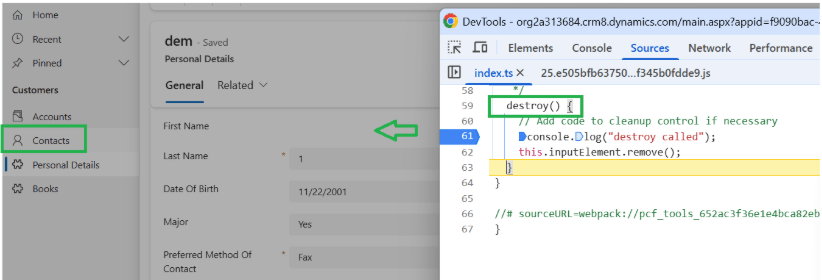
What Does destroy() Do?
- Cleans up the component before removal.
- Removes event listeners.
- Clears timers, intervals, or subscriptions.
- Releases resources to prevent memory leaks.
- When user navigates away from the form.
- When the form is refreshed.
- When the component is removed or replaced.
7. Assumptions
- Developers know TypeScript, HTML, CSS, and Dynamics 365 CRM.
- Environment supports model-driven apps and solution deployment.
- Necessary permissions for customization and deployment are available.
8. Considerations
- Ensure browser compatibility and accessibility.
- Secure external integrations and API usage.
- Optimize performance for large datasets.
- Maintain version control and provide user documentation
9. Constraints
- No direct server-side data access; use Web APIs.
- Must be deployed via solutions—no ad hoc usage.
- Limited to model-driven apps; not reusable in canvas apps.
- Debugging requires client-side tools and expertise.
10. Summary
PCF enables rich, customizable UI components in Dynamics 365 CRM, enhancing user experience and functionality. While powerful, it requires careful planning around deployment, performance, and integration to ensure success.
 RSHANU
Leave a comment